
Overview
ArbiterSports (“Arbiter”) is the online assigning system that GLOA uses to assign all lacrosse games. The main Arbiter login page is https://arbiter.io (opens in a new tab). GLOA will only assign games which are entered into Arbiter. No offline or direct assignment games are permitted for any GLOA officials for Georgia High School sports or any other teams, leagues, or tournaments for which we assign officials.
On this page: Signing in · Navigation · Main · Schedule · Schedules and entering games · Lists · Evaluations · Profile
Signing in
- Go to https://arbiter.io (opens in a new tab) and click Login. Select “For Schools, Assigners, and Associations”.
- Enter your email address and password. If you are logging in for the first time, change the password the system gave you.
- If you belong to more than one Arbiter group, choose GLOA (102453) from the drop-down at the top right.
If you don’t have an account or you are having problems logging in, email the GLOA assigners at gloaassigners@galaxref.com.
Navigation
Arbiter has an intuitive navigation menu. There are five primary sections this guide covers: Main, Schedule, Lists, Evaluations and Profile.
Main
This page displays information for key GLOA contacts. This information does not change very often but will usually remain at the top of the page throughout the season.
Schedule
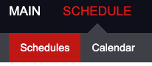
This page is the primary tab where coaches and team contacts will work. This page has two sub-sections: Schedules and Calendar.
Schedules
Schedules shows your school, sport, level (JV or Varsity), and current number of games in the system. Note, this number will include Home games that your team has and Away games another team has entered with your school as the “Visitor”.
Entering new games:
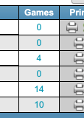
To enter a new game, click the number in the “Games” column in the row for the appropriate Team. If you do not currently have any games, this number will be a zero (“0”).
Edit Game Schedule:
The “Edit Game Schedule” page will load. This page will show your team’s current schedule, both Home and Away.
To add a new game, click the green plus icon in the upper left of the schedule grid.

Add Game:
When the “Add Game” page loads, you are able to enter the game details. A few notes about entering games:
- You can only enter your own team as the “Home”. If you are scheduling another school’s team at your site as the “Home” team, enter “TBA” to save the game, then contact your GLOA Assigner to have the home team updated.
- For pre-season scrimmages, be sure you select “Scrimmage” from the “Level” options.
- If scheduling a mixed game level situation, such as a JV team playing “up” at the Varsity level, uncheck the “Match Game Level” box.
- If you need to change the “Bill To” to a different school, such as a JV “round robin” tournament, contact your GLOA Assigner to have this updated.
When you are done, click the “Save” button, and the game will be added to your schedule.
Reminder: Arbiter will not allow you to add or update games inside a 30-day window. If you need to change or add a game, contact your GLOA Assigner. For emergency changes (within 48 hours of the contest), contact the GLOA Assigning team as a group by emailing gloaassigners@galaxref.com.
Lists
This section contains contact information for GLOA assigners, other schools, etc.
Evaluations
This section is where you can evaluate the crew on a given game. GLOA appreciates feedback on our officials!
Profile
Your profile is where you update your contact information, including your cellphone number. Click the round icon in the upper right corner, and select “Profile”. You can add or edit your cellular number here.